1080 pxTypical preset
Resize to shortest side
Set a target shortest dimension and re-page every image in your archive.
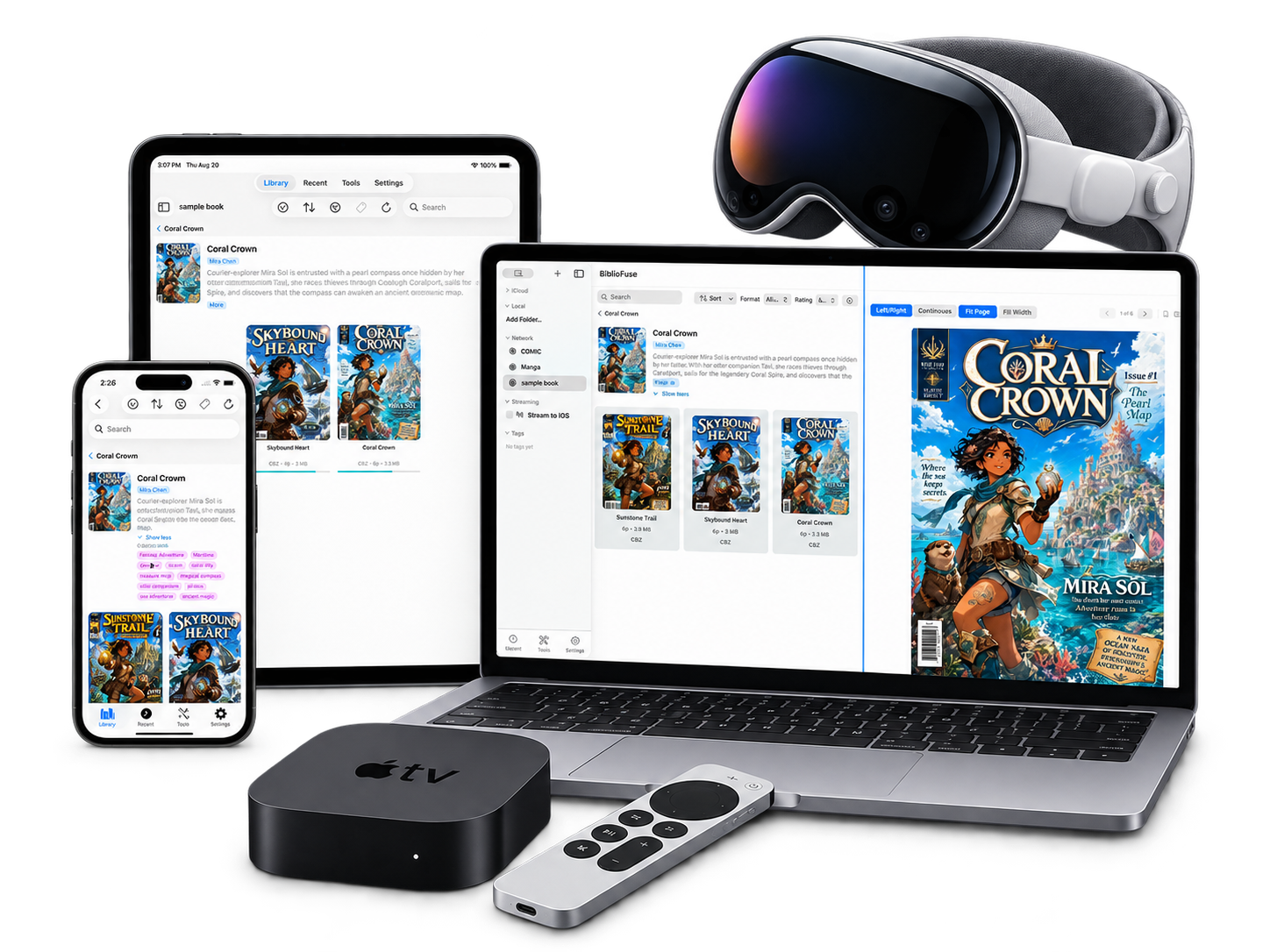
A focused reader with the library tools you actually use: formats, folders, tags, ratings, progress, and bookmarks. Keep books on iPhone, iPad, Mac, or PC, and stream a desktop library to iPhone when you need more storage.


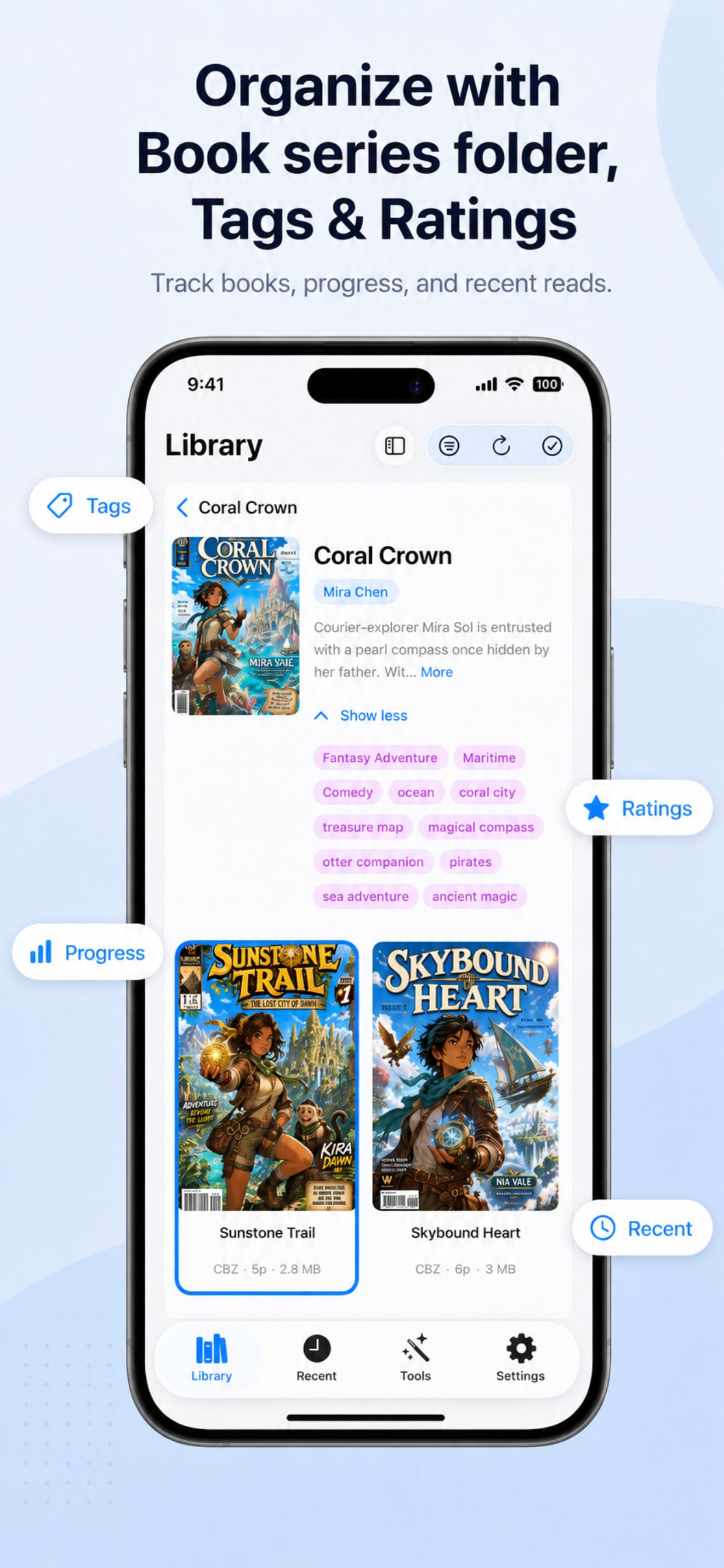
EPUB, PDF, CBZ, CBR, RAR, ZIP and TXT - read in a single library with folders, search and recent books. Cover thumbnails help CBZ, CBR, EPUB and PDF libraries stay visual without using real copyrighted covers in the site screenshots. Import from Files, document picker, or your iCloud Drive.
A distraction-free reader with the controls that matter for long sessions. Text-to-speech for EPUB and TXT. Auto-scroll for comics and webtoons. Peek zoom to inspect a panel without losing your place.
On Mac and PC, BiblioFuse becomes a desktop library hub for large collections. Manage folders on the host, then stream books straight to BiblioFuse on iPhone, iPad, Android, Apple TV, and Vision Pro — over home Wi-Fi, or remotely over 5G with Tailscale where supported.
Remote access requires the host and iOS device to be signed into iCloud and connected through Tailscale. For the most consistent home and remote setup, keep Tailscale on both devices.
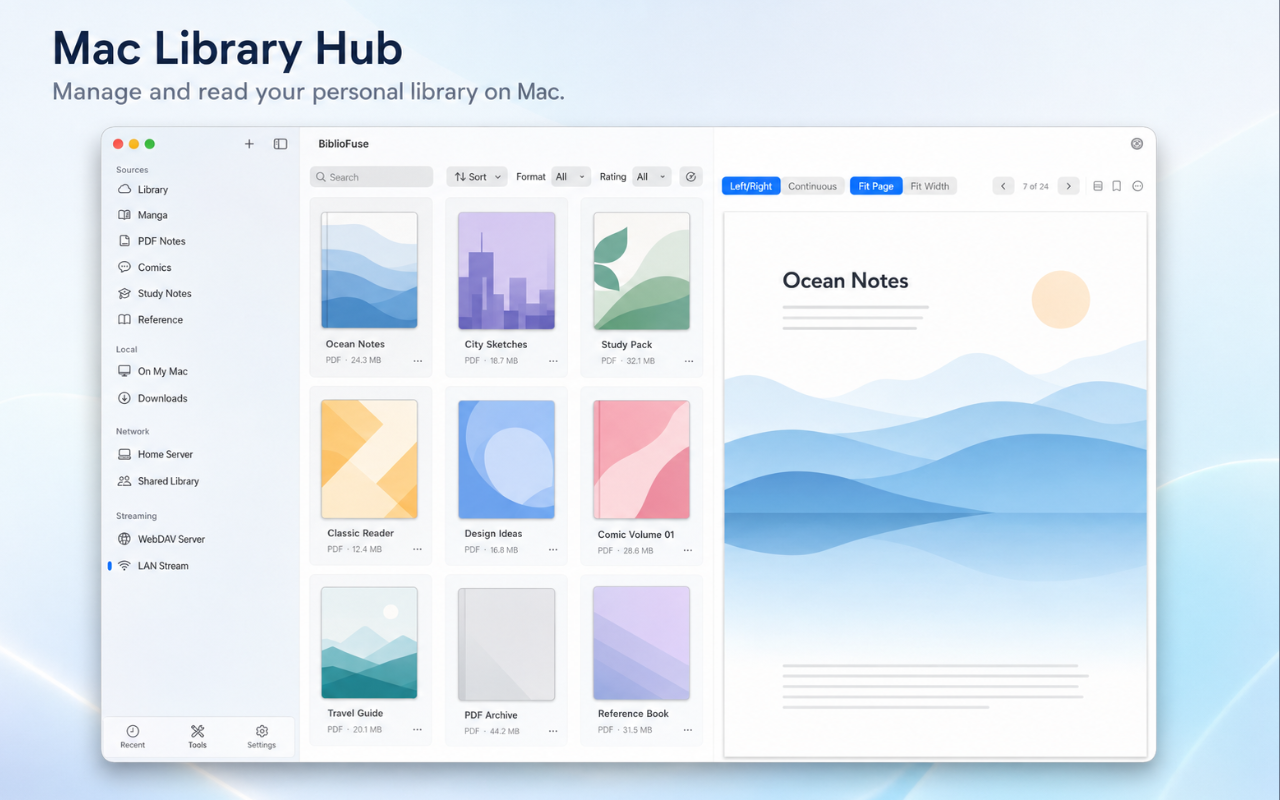
Set a target shortest dimension and re-page every image in your archive.
Re-encode pages to WebP or JPG for smaller archives that still look crisp.
Combine chapters, volumes or split downloads into one clean CBZ, ZIP or PDF.
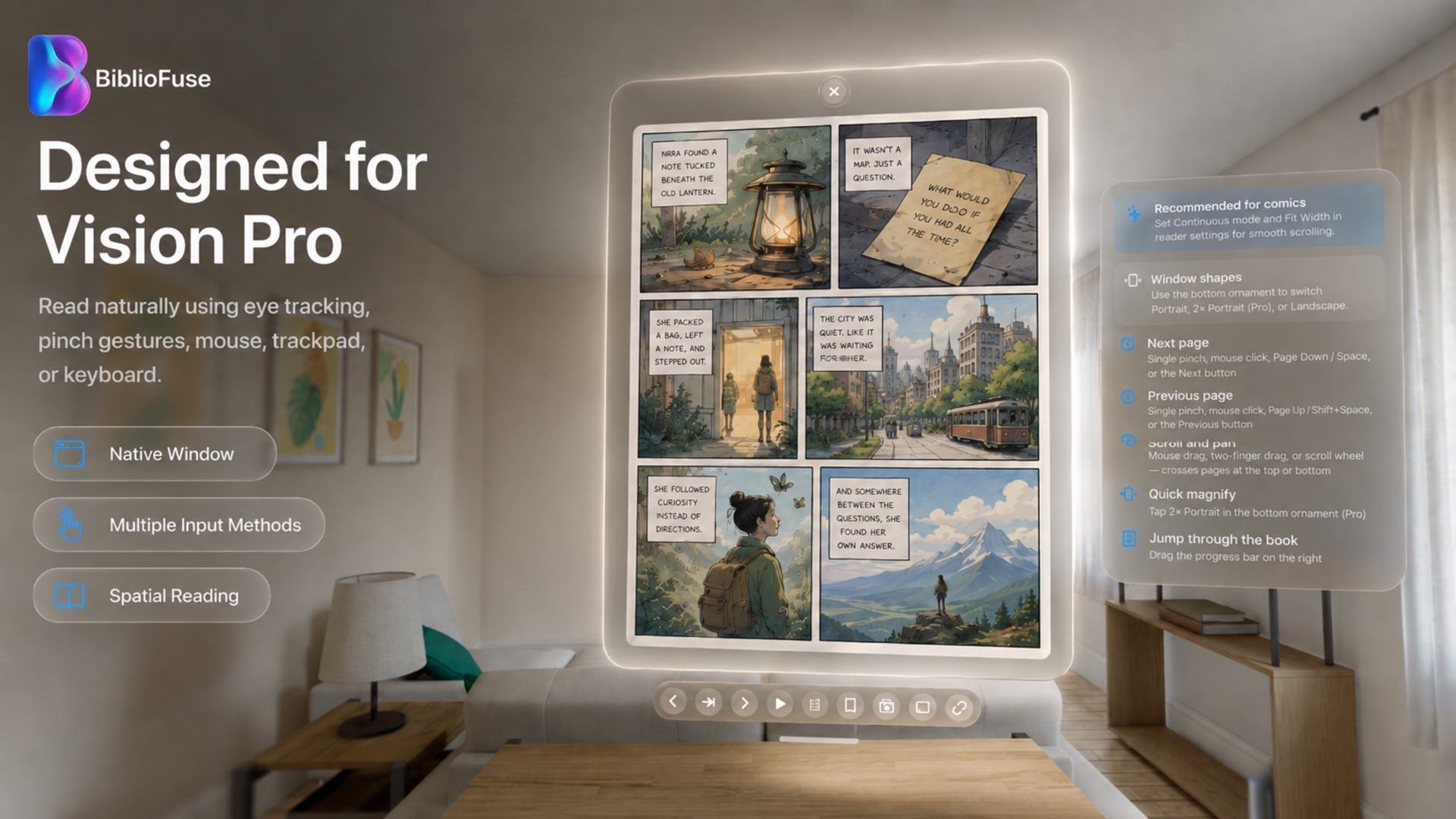
BiblioFuse is a native visionOS app — not a stretched iPad build. Read comics and books in a true spatial window, browse your collection on floating shelves, and keep everything light by streaming from your Mac or PC.
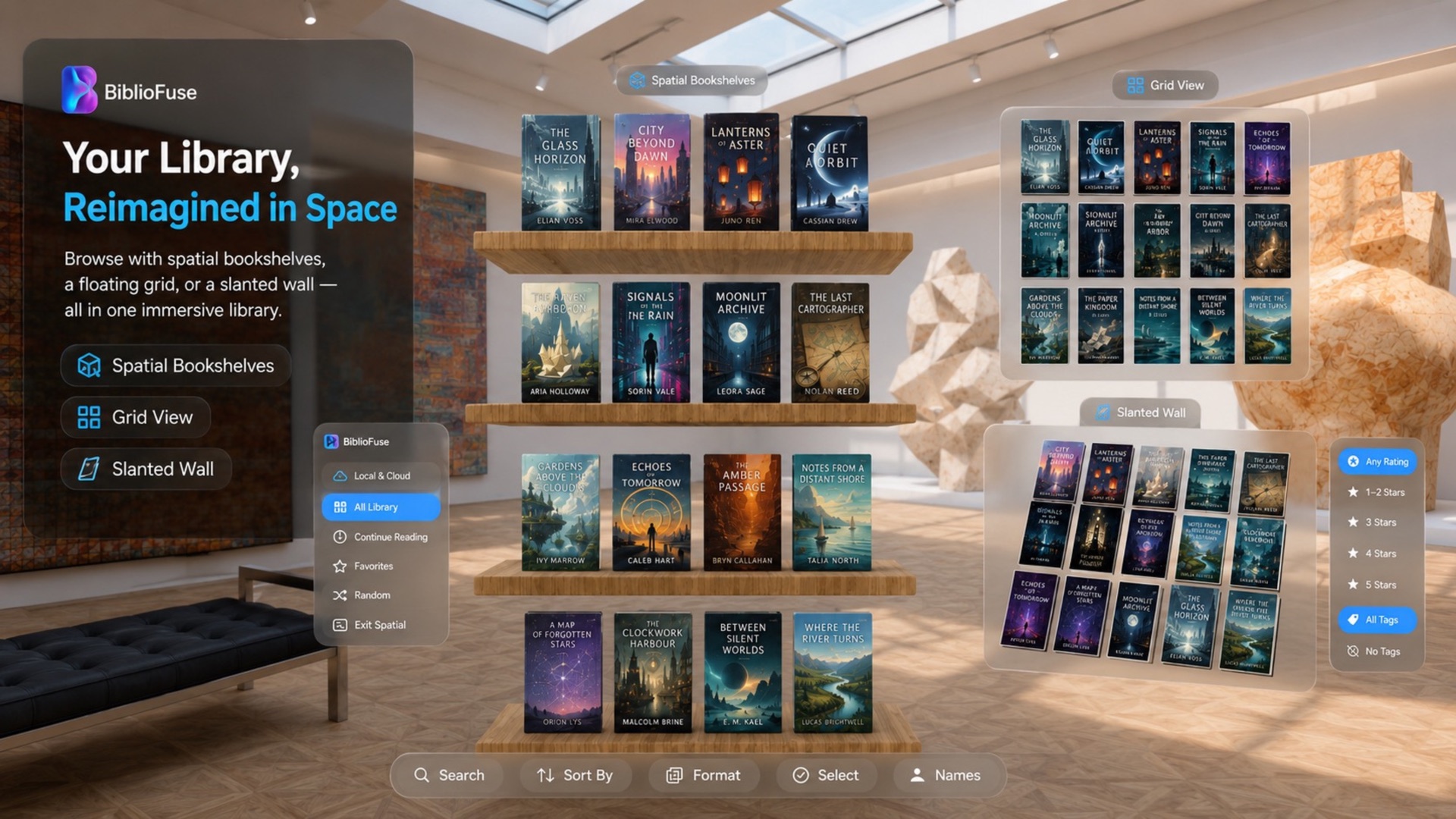
Your covers on real wooden shelves, arranged around you.
A clean floating grid for scanning a large library fast.
An angled gallery wall with rating and tag filters at a glance.
Stream your library from a Mac or PC so Vision Pro storage stays free — the same private Tailscale route BiblioFuse uses on iPhone and iPad.
The Apple TV app browses and reads with the controls you already know. It streams your library from a Mac or PC on the same network, so nothing is stored on the box and your progress carries back to your other devices.
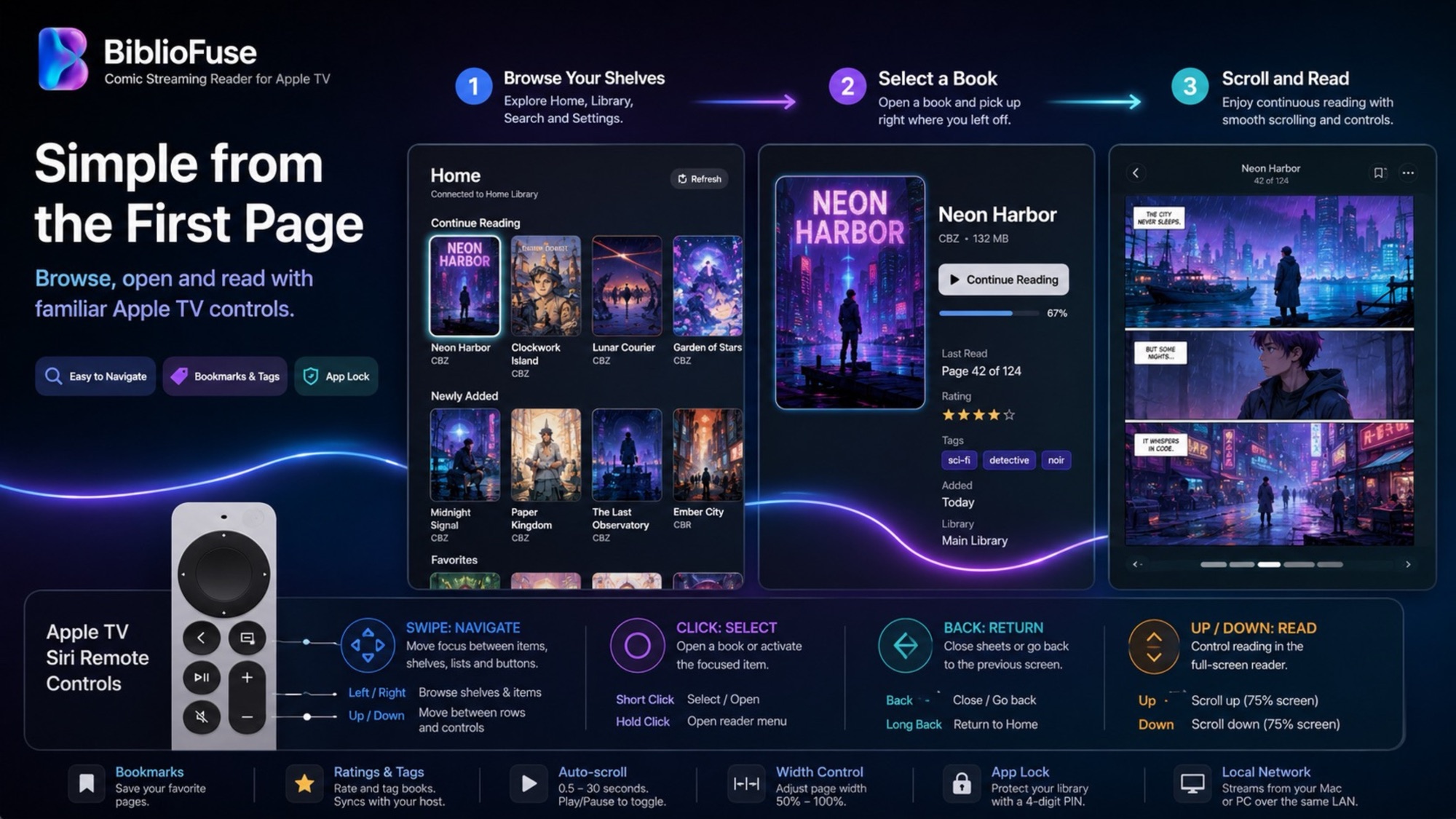
Home, Library, Search and Settings, laid out for a big screen.
Open it and pick up exactly where you left off.
Continuous reading with smooth scrolling and simple controls.
Apple TV reads over your local network only — it streams from a Mac or PC on the same Wi-Fi. tvOS has no iCloud Documents access and the Tailscale path is built but still disabled, so away-from-home streaming is not available on the TV yet.
Start with the workflow: read comics, search novels, unlock documents, clean duplicates, or run a quick browser tool.
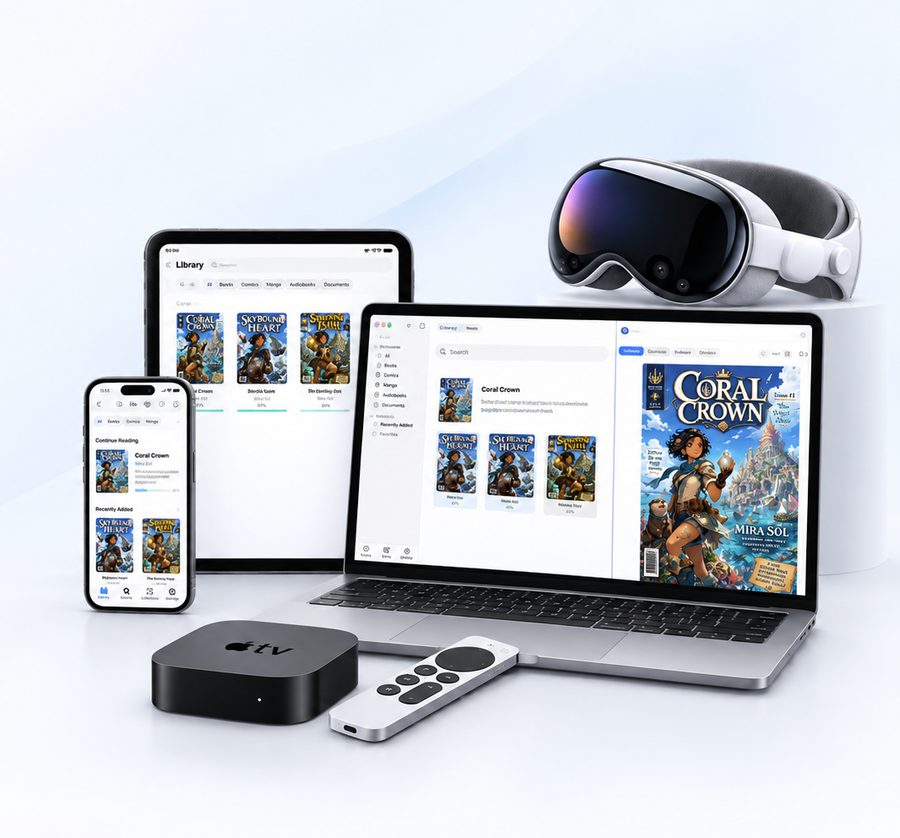 Universal purchaseBiblioFuse Reader iOS / macOSiPhone · iPad · Mac · Vision Pro · Apple TV↗
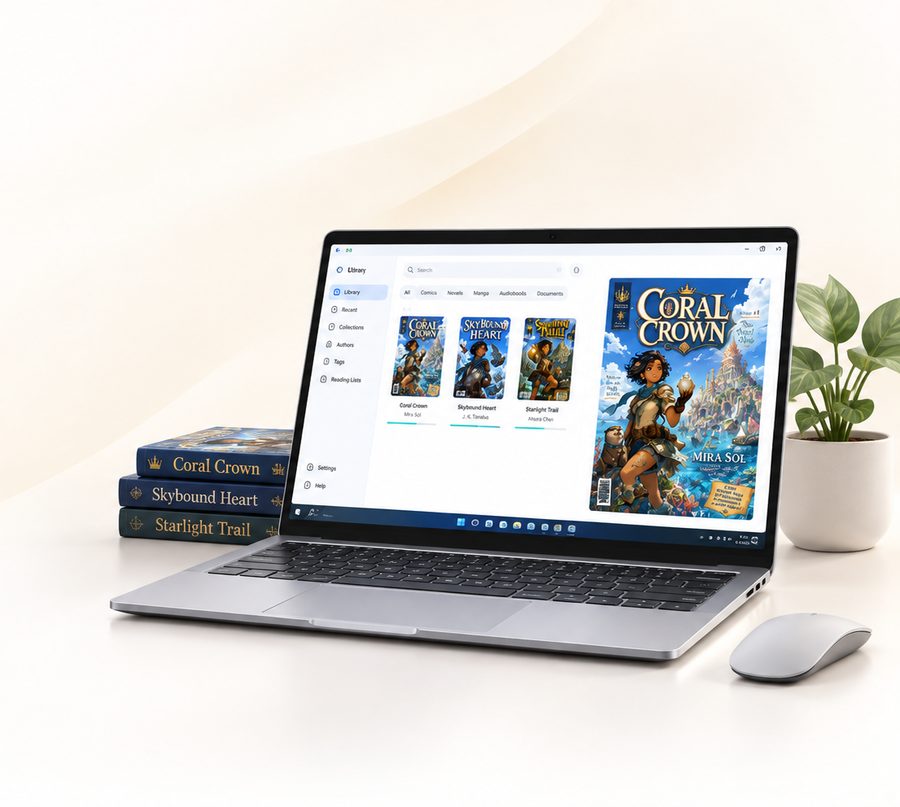 Microsoft StoreBiblioFuse Reader PCWindows↗
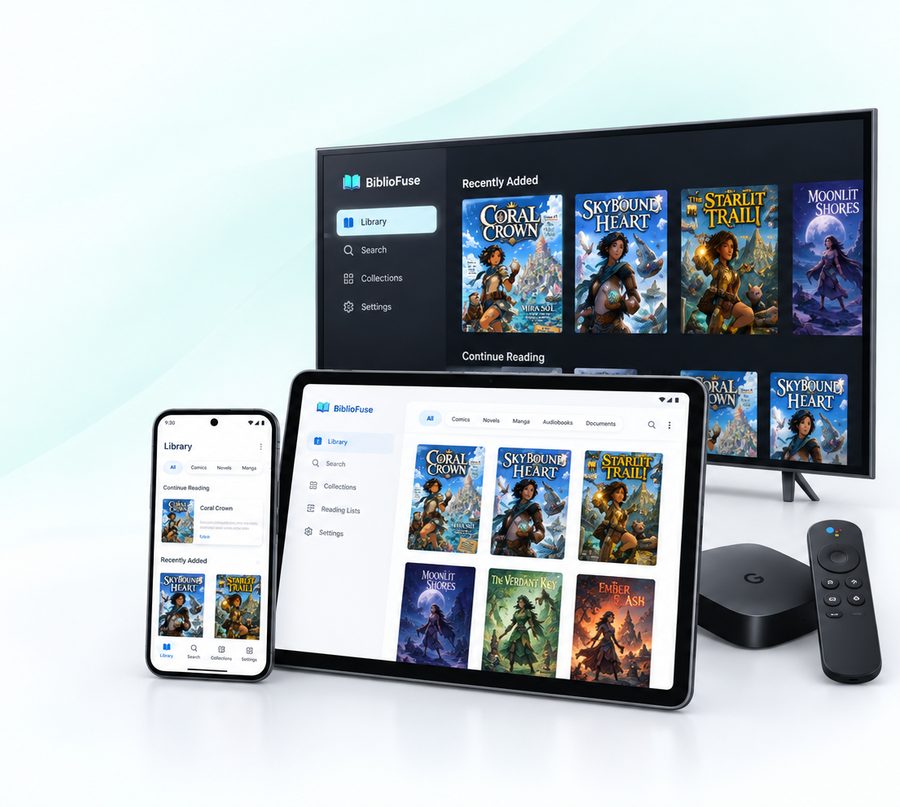 EditionBiblioFuse Reader AndroidPhone · Tablet · Android TV↗
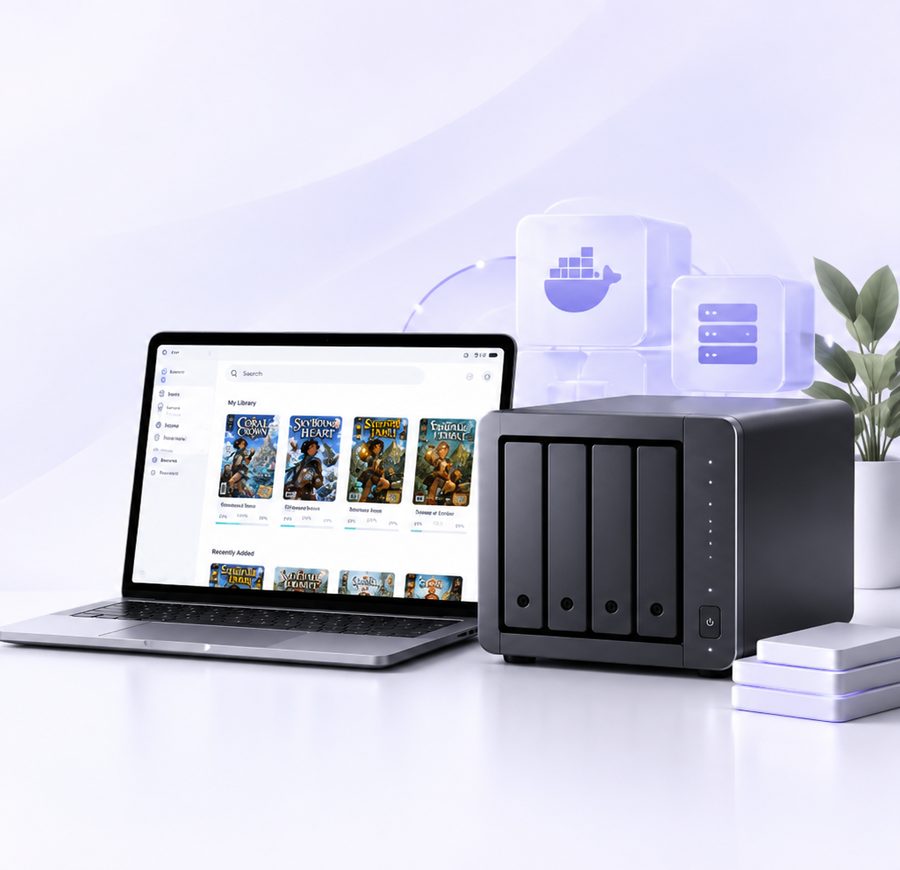 Self-hosted · FreeBiblioFuse NASDocker · Synology↗
Tap any question below for a short answer. Prefer a picture? Every answer links to a full illustration.
Yes — store your comics and books directly on iPhone, iPad, visionOS, or Android. Everything works offline, and your reading progress stays on the device. No server, no setup.
View illustration (English)Yes — install the Mac or PC app, or open the free built-in browser reader on a NAS. Your library and reading progress stay with whichever computer or NAS you use to host it.
View illustration (English)Yes — stream from a Mac, PC, or Synology NAS host to iPhone, iPad, visionOS, or Android. It connects automatically over your home Wi-Fi, with optional Tailscale for access away from home, and nothing is permanently stored on the reading device. You can also point the app straight at an OPDS, Komga or Kavita server you already run — same page-at-a-time streaming, nothing downloaded in full.
View illustration (English)Yes — the Apple TV and Android TV apps stream your library from a Mac, PC, or Synology host over your home Wi-Fi, with TV-friendly navigation. Nothing is stored on the TV, and your progress carries over to your other devices.
View illustration (English)Keep your library in your own iCloud storage instead of downloading every book to every device. Books load automatically when you open them and unload when you don't need them, while your reading progress stays in sync across iPhone, iPad, visionOS, Mac, and PC.
View illustration (English)The family now spans iPhone, iPad, Mac, Windows, visionOS, tvOS, Android, Docker, and Synology — and reads from any OPDS, Komga or Kavita server too. Pick what hosts your books and what you want to read on, and see exactly which app and connection mode to use.
| Platform | Role | Content source support | Streaming connection modes | |||||||||
|---|---|---|---|---|---|---|---|---|---|---|---|---|
| Hosting as a server | Free browser reader | Standalone reader (no streaming) | Standalone reader (has streaming) | Local | NAS | iCloud | Host | OPDS / Kavita / Komga | iCloud + Tailscale | Local Wi-Fi | Manual Tailscale | |
| Docker (NAS) | ✓ | ✓ | ✓ | △ | ||||||||
| Synology NAS (SPK) | ✓ | ✓ | ✓ | △ | △ | |||||||
| macOS | ✓ | ✓ | ✓ | ✓ | ✓ | △ | △ | △ | ||||
| Windows PC | ✓ | ✓ | ✓ | ✓ | ✓ | △ | △ | △ | ||||
| iPhone / iPad | ✓ | ✓ | ✓ | ✓ | ✓ | ○ | ○ | ○ | ||||
| visionOS | ✓ | ✓ | ✓ | ✓ | ✓ | ○ | ○ | ○ | ||||
| Android phone | ✓ | ✓ | ✓ | ✓ | ○ | ○ | ||||||
| tvOS (Apple TV) | ✓ | ○ | ||||||||||
| Android TV | ✓ | ○ | ||||||||||
BiblioFuse Reader